
What is the Key Pro extension?
Key Pro is a malicious extension for Google Chrome and similar browsing applications. It can modify your browser’s settings and change your default search engine, new tab, and homepage preferences.
Cybercriminals have created this malware infection to profit by providing irritating advertisements, redirections, and unwanted applications to users who have downloaded the adware program.
Furthermore, because it can modify browser settings and monitor a user’s web movements without their consent, it can be a concern to the computer.
It is a clear sign that your system is infected with this form of malware if Key Pro appears on the internet browser program when it’s launched. Because adware programs are likely to change browser settings and install a different search engine in the user’s browser.

How did I get infected?
Viruses of all varieties typically spread in a particular way. The same as how Key Pro was able to infiltrate the computer system. This malware can access a computer system in several methods, but the following are the most common ones:
Spam Email Attachments: It is the most common and widely used strategy. It deceives the intended recipient into downloading malicious software that is attached to the attackers’ email. The files are either bundled together or disguised as documents, movies, and voicemails in the attachments.
Drive-by Download: It occurs when a person visits an infected website that has been injected with a malicious script that causes a random piece of software to be downloaded. Hackers can then use these flaws to obtain unauthorized access to targets’ systems once they’ve been opened. It is commonly associated with the installation of adware or potentially unwanted programs.
Torrent files: It is used by millions of pirates all over the world to obtain pirated movies and records, as well as cracked versions of premium software. Since then, cyber thieves have used the torrent community to propagate their dangerous software.
Key Pro Extension Removal Procedure
The methods provided below are intended to help you remove the malicious Key Pro extension from the web browser.
Removing malware from the browser should be thorough and carefully executed; therefore, please follow every step provided.
Step 1: Remove the Key Pro browser extension manually
Please follow the steps below to remove the Key Pro extension from your web browser and stop the suspicious and harmful behaviors that may endanger the user’s data and privacy.
The browser may be controlled by an organization, making it impossible to remove the browser extension when you try to do so. It indicates that the virus has set up a specific configuration to prevent removal. If that's the case, please use the steps in this article to fix the problem.
Note: The extension used in this step is not malicious and is simply being used as a demonstration of how to get rid of browser extensions.

Google Chrome
1. Open the browser and click on the three horizontal lines at the upper-right corner of the window screen. Once the drop-down menu opens, hover over Extensions and select Manage Extensions on the submenu. On the other hand, you may also type chrome://extensions on the URL bar to directly access the browser extension page. 2. The extensions page will then open in a new tab, showing all installed plugins on the browser. Find Key Pro, and deactivate the browser extension by toggling the blue switch below its name and description (We will be using AdBlock as an example). After which, you may now click the remove button to get rid of the extension virus from the Chrome browser.
 3. If the switch is disabled, then you will need to remove it directly from the extensions folder of the browser. To do this, first, you have to select the plugin and look at its ID as shown in the URL bar. (See the image below for an example.)
 4. Open File Explorer and go to the folder where Chrome stores the Key Pro browser extension. The default location will be at:
C:\Users\YOUR NAME\AppData\Local\Google\Chrome\User Data\Default\Extensions
 5. You will see a list of folders, each with different hashes. Find the folder matching the ID of the malicious Key Pro extension, then right-click and delete it. Make sure the browser is closed before proceeding to delete the folder.
 The next time you open the Google Chrome browser, you will see that the extension has been removed.

Mozilla Firefox
1. Launch the Firefox browser and open the menu by clicking the three horizontal lines, which can be located in the upper-right corner of the program. Once the drop-down menu opens, click on Add-ons and Themes. On the other hand, you may also type about:addons on the browser URL bar to enter the Add-ons Manager. 2. From the left-side menu, go to the Extensions page and view all of your browser extensions installed on Firefox. Toggle the blue switch near Key Pro to deactivate the plugin, then click the three horizontal dots beside the toggle and select Remove to get rid of it from the browser (We will be using Adblock Plus as an example).
 3. If the toggle is locked or unable to be removed, then you will have to manually remove the extension from the browser's extension file directory. Open File Explorer and go to the following directory where Mozilla Firefox keeps its browser extensions; this can be located via:
C:\Users\Your Username\AppData\Roaming\Mozilla\Firefox\Profiles
 4. You will be seeing Mozilla Firefox profiles, and depending on how many browser profiles you have, go to the default ones you have, such as default-release in some cases, and click on the extensions folder inside the profile.
 5. It will be difficult to determine the extensions of the folders you see because they have generated IDs. To make things simple, you should delete every .xpi extension file and make sure the Microsoft Edge browser is closed when doing so.
 When you open the browser, every extension you have will have been removed. After the Key Pro virus has been wiped out, install the extensions that you frequently use again.

Microsoft Edge
1. Open Microsoft Edge and enter the following URL to enter the extensions manager page of the browser: edge://extensions on the other hand, you may click the horizontal three-dot menu and click Extensions from the multiple options shown. Then a small window of extensions will show; click on the Manage extensions to enter the same page. 2. The page will then show all of your installed extensions within the Microsoft Edge browser. Find Key Pro and disable it by toggling the blue switch (We will be using the AdBlock extension as an example). Then proceed to uninstall it by clicking the remove button right next to Details.
 3. If you were unable to remove the malware plugin, then you will have to head over to the browser's extension files via File Explorer to remove it manually. To do so, please head over to the extensions tab first, and now click the details next to the remove option.
 4. Open File Explorer and head over to the following directory where all browser plugins within Microsoft Edge are stored:
C:\Users\Your Username\AppData\Local\Microsoft\Edge\User Data\Default\Extensions
 5. Now find the folder with the same extension ID as the Key Pro plugin. It indicates that the following folder contains the files for the particular virus extension: Right-click it and delete it.
 When you open the browser again, the malicious Key Pro extension has now been completely removed.
Step 2: Uninstall unwanted programs from the computer
Malicious browser extensions like Key Pro are also installed on computers by adware and malware applications. You should locate and get rid of the harmful software on the computer to make sure it does not resurface.
Remove software via Control Panel
The most common way to remove malware from your computer is to uninstall the program through the Control Panel. You may view all of your installed apps as well as the developer's name in the list of applications.
You can eventually remove the cause of Key Pro extension and other virus-related browser troubles by uninstalling the programs you do not recognize.
1. From the Windows search bar at the bottom of your screen, search for Control Panel and click the result that matches the same application.

2. You will see different options, such as System and Security, as well as User Accounts. But what you want to click is the Uninstall a program under the Programs section. Depending on your Windows version, hovering over the uninstall section will be relatively the same.
 3. Now that you are on the Programs and Features page, it will show you all the installed programs. There will be filters you may want to use, such as viewing them in lists with details such as the publisher, version number, and when they were installed.
 4. Right-click the suspected virus program and click Uninstall to get rid of it (We will be using Adaware as an example). It will then proceed to remove the application, or you will be presented with an uninstaller that will guide you to remove it; either way, it will be removed.
 There is a chance that the program may not be uninstalled successfully, and when that happens, it is important to use the power of an uninstaller program such as Revo Uninstaller.
It is widely known to be enough to remove malicious programs that are evading uninstallation. If you encounter such an issue when proceeding to uninstall the app, you may utilize the uninstaller to do the job for you.
Remove malicious programs via Revo Uninstaller
For computer users who are not sure of what to do. You may resort to using Revo Uninstaller since it is much more effective and easy to use. Revo Uninstaller is a handy tool for Windows users.
This uninstaller not only removes programs from the computer but also deletes their changes from the Windows Registry, Host File, etc. Following the steps below will guide you on how to install and use Revo Uninstaller to get rid of the source of the unwanted browser extensions.
1. Click the button below to proceed with installing Revo Uninstaller on your computer since we have made an in-depth guide on how to use it on the following page. On the other hand, you can also head over to Revouninstaller.com and download it from there.
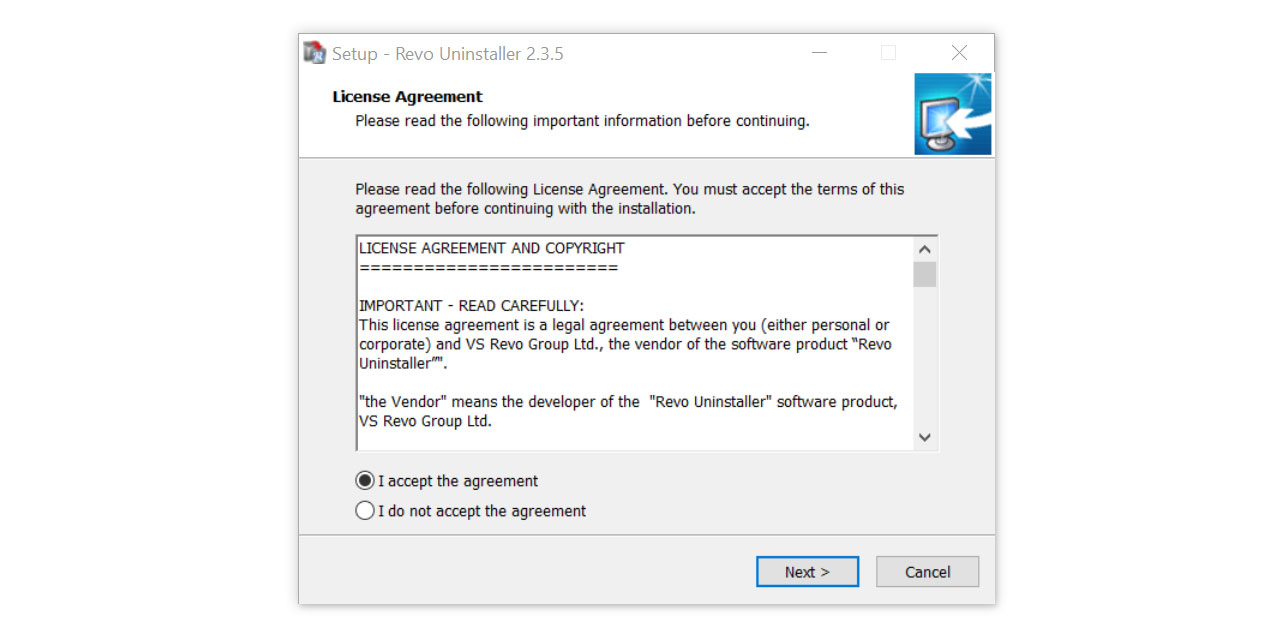
2. After the setup file (revosetup.exe) has finished downloading, run the installation wizard, read the license agreement, and click agree to proceed to the next step of the installation. Follow the procedure and wait until the installation of the software is complete.
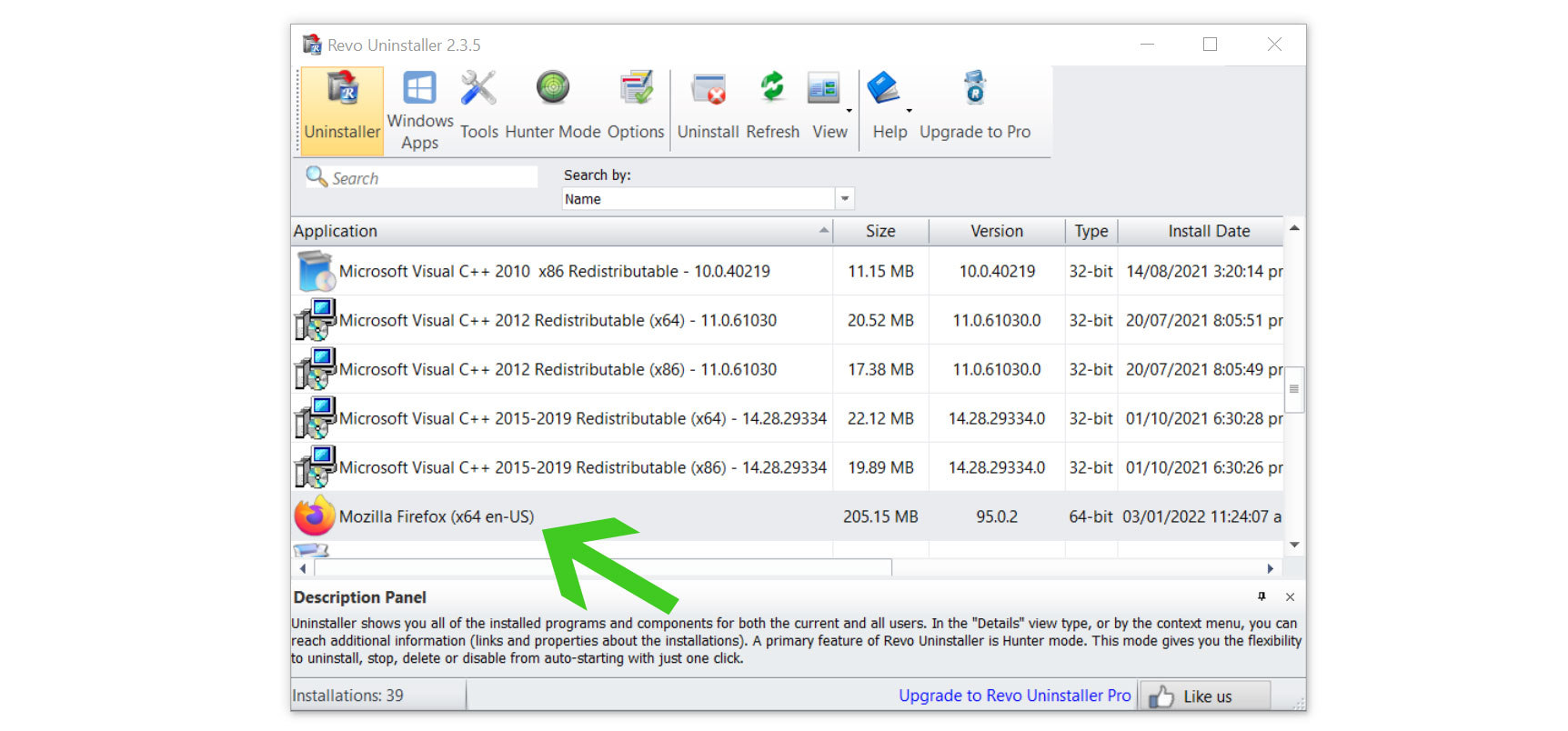
 3. Once the software has launched, find the unwanted application that needs to be removed and double-click the program to uninstall it.
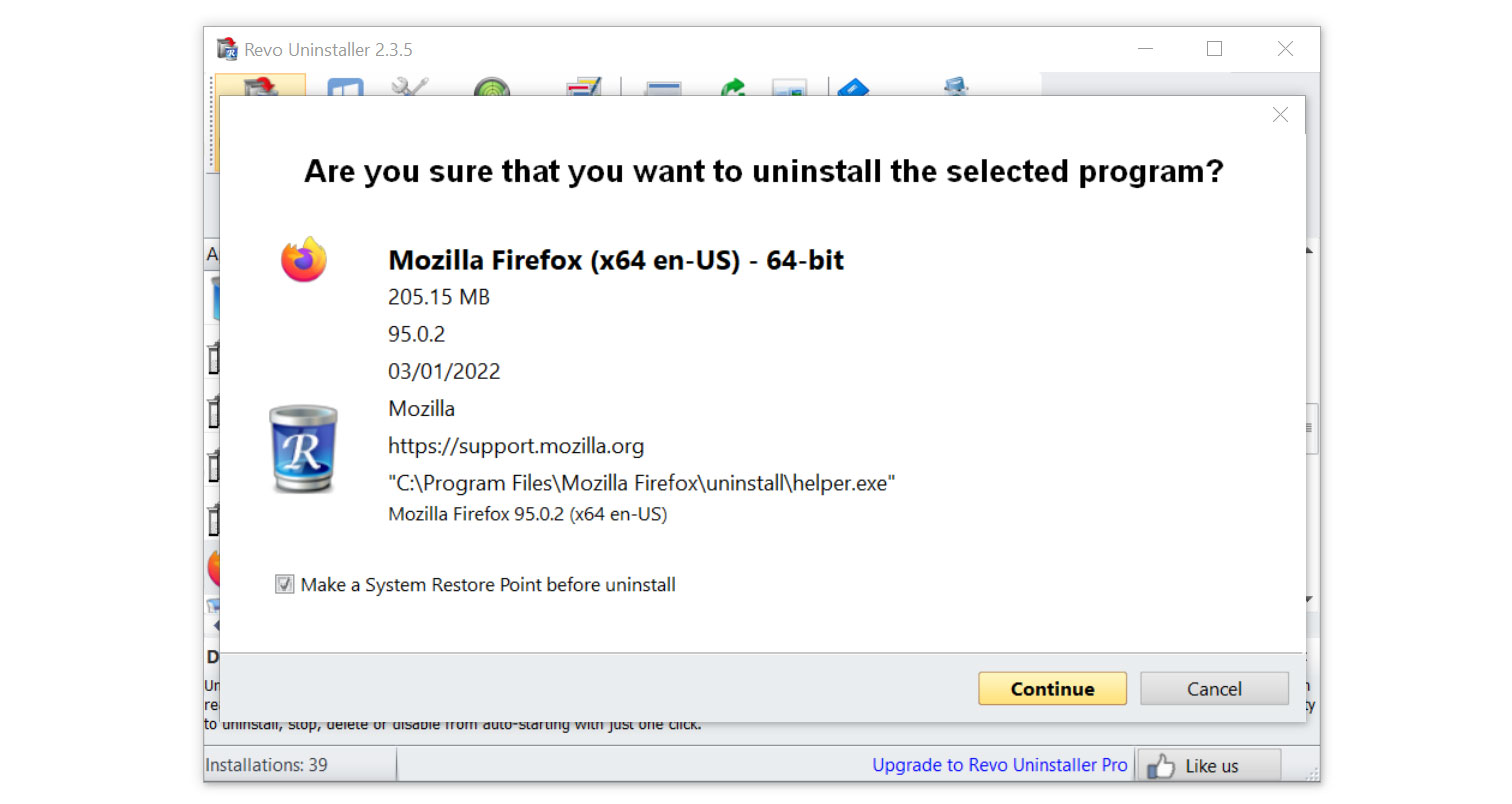
4. Click on the Continue button and follow the procedure to start uninstalling the program. It is also advised to make sure that a System Restore Point is made before the uninstallation, just in case.
5. You will be prompted to choose a scanning mode. From the three options, click Advanced Mode, then select Scan.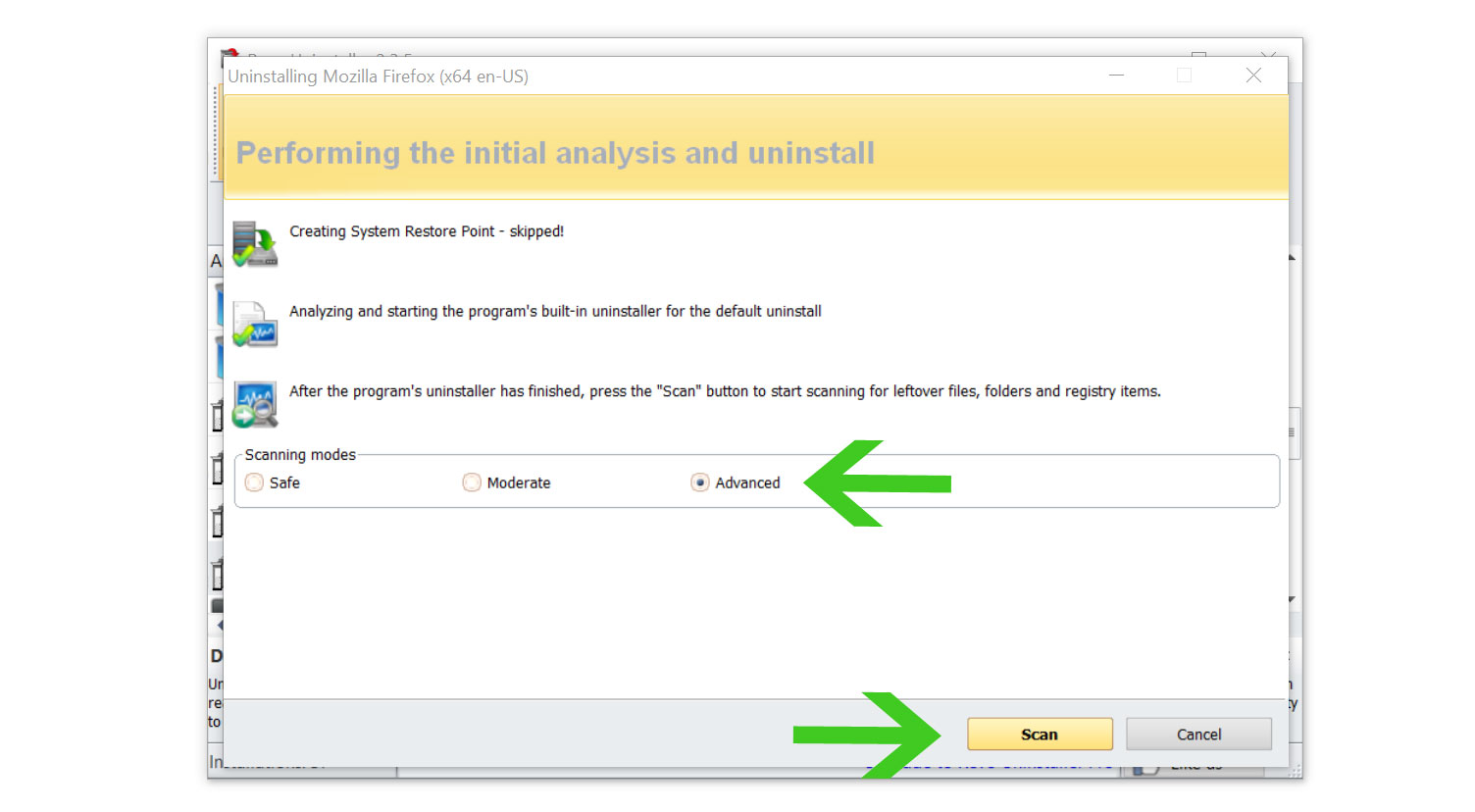 6. A window will pop up and show all of the leftovers and changes made by the uninstalled program. Click the Select All button and hit Delete to remove the leftovers found in the Windows Registry.
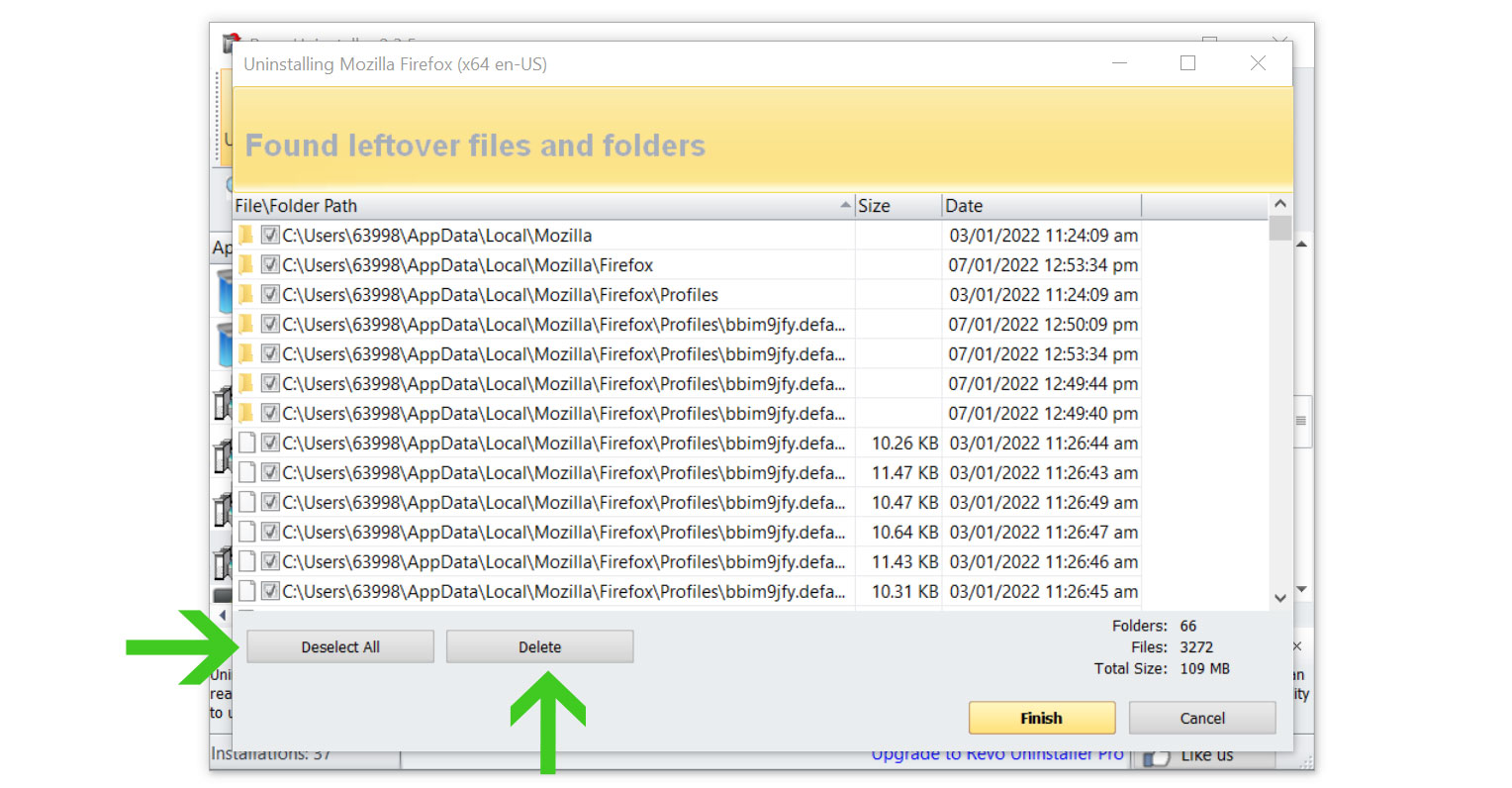
Once the window closes, you have successfully removed the browser threat from your system. And we believe with absolute certainty that once the malicious program has been removed, the browser issue will now be fixed, and you can now continue browsing the web with ease and comfort.
Step 3: Scan with powerful malware removal software
By using an anti-malware application that is specifically designed to eliminate threats like these, the malicious Key Pro browser extensions and other malware hiding on the computer will be immediately recognized.
For these threats, we recommend running a full system malware scan with Malwarebytes Anti-Malware. This program is widely known and recognized by security experts when it comes to removing viruses from the system.
Remove malware extensions with Malwarebytes Anti-Malware
We have also been using this software on our systems ever since, and it has always been successful in detecting viruses. It has blocked the most common browser threats, as shown by our tests with the software, and we assure you that it can remove the unwanted Key Pro extension installed on your browser.
 Not to mention, it is free to use and does not come at any cost to remove the viruses it finds on your computer.
To use Malwarebytes and remove malicious threats from the computer, follow the steps below:
1. Download Malwarebytes by clicking the button below, as we have made an additional and in-depth tutorial on how to use it. Otherwise, you may go to their official website via Malwarebytes.com (Avoid misspelling as it may lead to scams).
Download Malwarebytes Anti-Malware
2. Visit their download section and start a Free Download to begin installing the software on your computer. 3. Once the Malwarebytes setup file (MBsetup.exe) has finished downloading, open the executable file in File Explorer, then right-click the setup and select run as administrator to give the highest system authority and make sure Malwarebytes is installed correctly.
 4. Make sure to carefully follow the installation setup wizard's instructions and provide the relevant information it requires. You will be prompted with questions such as Personal or Business Use, Email Address, and others.
 5. From the application's home screen, go to the scan tab and begin running a system scan. This will scan the whole computer, including memory, startup items, the registry, and the file system. This is done so that not only the malicious extension but also other trojan viruses hiding in the system can be detected.
 6. Since it can take a while, you should either relax and wait for it to finish or find something else to do. The length of the scan depends on the size of the files you have and the hardware capabilities of your computer. Here are some ways to make scanning faster.
7. Once the scan is finished, Malwarebytes will show the malicious viruses and threats it found on your PC. The Key Pro extension will also show up on the detection results, and it will be given a threat name such as Adware.ChromeLoader.Generic, and many more. 8. Select all the detected files from the report and click the quarantine button to remove the malicious items from the computer into the protected safe quarantine zone of the anti-malware program so that they would not affect and do malicious actions to the PC again.
 9. After placing the virus files in the program’s quarantine, it may prompt you to restart the computer to finalize the full system scan procedure. Please restart your computer if prompted, as it is essential. After the restart, Malwarebytes will open and display a message that the scan was complete.
Note: Don't forget to delete the quarantined files afterward.
Simply quarantining the malware files is not enough to make sure it is completely removed. This is a very common misconception: once you click the quarantine button, it is all good and gone.
But, while its effects and harmful activities are halted, the malware is still in the system, only placed in the anti-malware program's quarantine folders. To completely remove it from the computer, go to Detection History from the home screen, select all Quarantined items, and click Delete.

You have successfully removed the malicious Key Pro extension from the browser. Rest assured they would not resurface again since Malwarebytes offers a premium trial for 14 days, so you could take advantage of it for free and prevent malware from infecting your system.
While the detection and removal of malware is free for Malwarebytes, the premium versions include real-time protection that ensures your computer is safe all the time. Although we encourage you to use the premium trial, you are free to purchase the full version if you find it useful.
The program is an anti-malware that removes harmful threats like trojan horses, worms, stealers, miners, keyloggers, and many other forms of malware and computer viruses.
We suggest Malwarebytes if you are looking for a removal tool and as a second opinion scanner, but if you want full-fledged antivirus software, we believe that the built-in Windows Defender is enough for computer security, or if you want something with a more sophisticated system and better protection: Kaspersky Free.
If you choose to uninstall Malwarebytes, you may suddenly see that Windows Defender Real-Time Protection is turned off. This is a common issue that users may face when uninstalling the software. To fix this issue, you may refer to this article.
Protective measures for better overall security
Removing trojan viruses and malware from the device is one thing; keeping it secure for the future and for a long period is a different thing and will require certain things to make sure you are secured, especially if you do not know most of the ins and outs of the device you are using.
Cybercriminals are always stepping up their game to make sure they infect users and extract data and money from them.
We encourage you to take the actions listed below to ensure complete security before leaving this page because we strongly promote web security and having a secure online presence.
Utilize a firewall to prevent data from being sent to cybercriminals
A security firewall is required for every internet connection that is made. It is an essential tool that enhances security and stops online attacks.
Through a security mechanism, it controls incoming and outgoing network connections on your system and network and filters the undesirable ones. Consider it a further barrier against malicious assaults and zero-day exploits.
If you want a fully functional firewall utility application that is exclusively focused on securing the network, we recommend these top two firewall solutions for personal computers: Comodo and ZoneAlarm.
Comodo Personal Firewall

Comodo Firewall is a well-known software program for securing your network and computer. It is a sophisticated tool with a wide range of features.
It is simple to use and doesn't require complicated configuration to set up. It also functions by being aware of your computer usage habits to avoid interfering with your work.
Additionally, it claims to offer the highest levels of protection against both inbound and outbound threats. It secures the ports on your computer from hackers and prevents rogue software from sending your sensitive data over the internet.
ZoneAlarm Free Firewall

You can also opt for ZoneAlarm Free Firewall as your first line of defense between your device and the internet. The program safeguards your network and blocks any dangers, and you can use the free version of it without paying anything.
It provides a robust two-way protection solution that guards against spyware from disclosing your data online while also hiding your PC from nefarious hackers.
With its cutting-edge anti-bot protection, it also protects your computer from automated cyberattacks in real-time.
Safeguard your data by using a VPN application
VPNs, also known as virtual private networks, guarantee your safety and complete anonymity while you browse the internet.
This ensures that your data won't be leaked because the program hides it. Be aware that visiting infected websites may cause your IP address and location to be disclosed; however, if you use a VPN, this will prevent your true IP address from being revealed to malware actors.
Mullvad VPN

Since user privacy is the main focus of a virtual private network program, Mullvad VPN excels at putting users' privacy first. You do not need to enter your email address while registering to download their application because they maintain anonymous accounts.
If you wanted to hide or didn't want your credit card information to be disclosed, they also accept Bitcoin payments. According to their website, they support a free internet that is devoid of surveillance and censorship.
They have also been announcing new server locations to guarantee users a fast connection anytime they want to connect to various areas throughout the world.
AirVPN
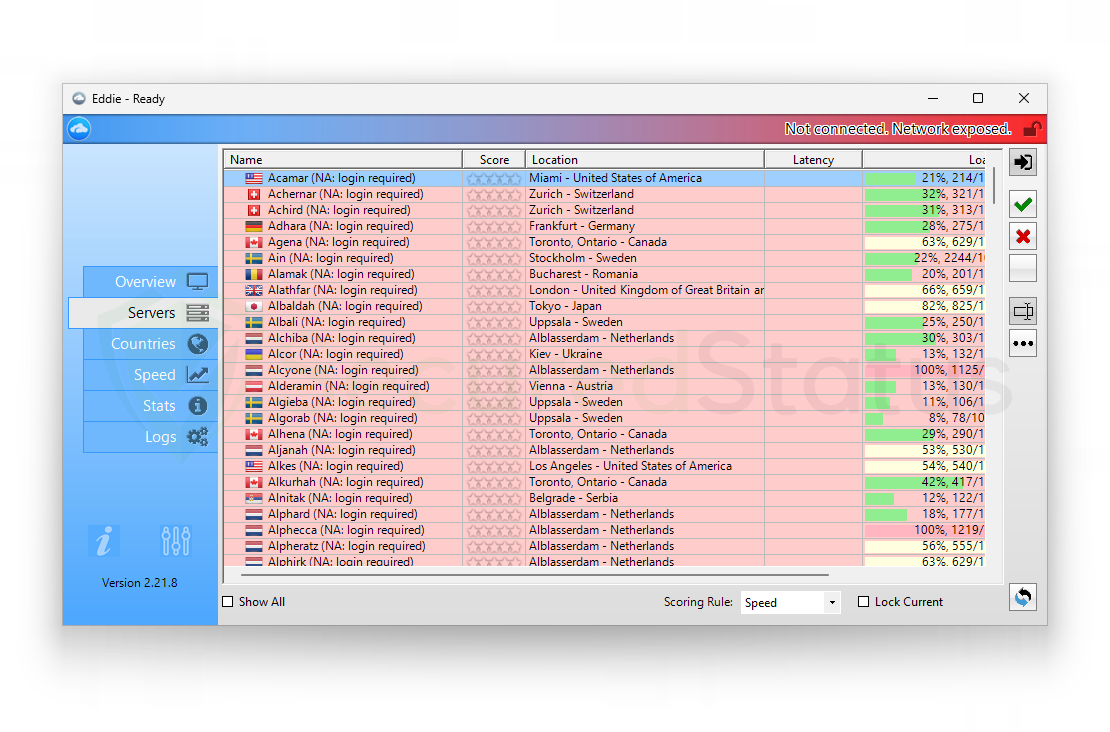
AirVPN seeks to provide users with access to the real internet, in contrast to Mullvad, which promises to offer users free internet. Along with masking your IP, they also don't monitor or log any user data, which is good.
You can use it for a long time without worrying about being disconnected because they don't impose a traffic or time limit when connecting to their servers. In addition, there are infinite, cost-free server changes with physically fast servers in many different nations.
Additionally, when registering for their program, you are not required to enter your email address. They also offer strong encryption and Perfect Forward Secrecy to ensure that it is difficult to determine the user's connection.
Bottom Line
The steps for locating harmful browser extensions on the browser and thoroughly removing them from the PC have now been covered.
You may be confident that Key Pro won't resurface because we have also eliminated the adware and malware programs that could have installed them back on the computer.
If you experience another virus attack on your device, please visit our website and find a malware removal solution for your problem, or get in touch with us, and SecuredStatus would be happy to assist you once again.
